Why Do I See Multiple Gumloop Apps When Typing @Gumloop in a Slack Connect Channel?
Last updated: April 2, 2026
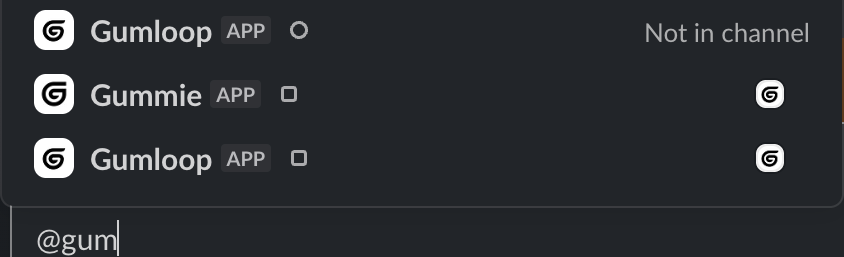
In Slack Connect shared channels, apps from both workspaces appear in the @mention autocomplete. You'll see duplicate Gumloop entries — always use the one from your own workspace (shown with a circle icon ○ next to the name).
Symptoms
When you type
@Gumloopin a Slack Connect shared channel, you see two or more Gumloop-related entries in the autocomplete dropdown.The entries may include names like Gumloop and Gummie, with different icons (circle vs. square).
You're unsure which one to @mention to interact with your agent.
Cause
This is standard Slack behavior, not a Gumloop bug. Slack Connect shared channels bridge two separate workspaces. Because both workspaces may have their own Gumloop Slack app installed, Slack's autocomplete shows all apps from both sides — even though each workspace can only interact with its own installation.
How to Identify the Correct App
Type
@Gumloopin the Slack message box to open the autocomplete dropdown.Look at the icon shape next to each entry:
Circle (○) — This is your workspace's app. Use this one.
Square (□) — This belongs to the other workspace in the Slack Connect channel. Mentioning it will not trigger your agent.
Select the entry with the circle icon and your organization's workspace context. This is the Gumloop app installed in your Slack workspace and connected to your Gumloop agents.
Good to Know
This applies to all Slack apps in Slack Connect channels, not just Gumloop.
If you're using a Custom Slack App, the same rule applies — look for the circle-icon version from your workspace.
If you only see square-icon entries and no circle-icon option, your workspace may not have the Gumloop Slack app installed yet. Ask your Slack admin to install it from Settings → Apps.
Still Need Help?
If you're still unsure which entry is yours, or your agent isn't responding after selecting the correct app, reach out to support@gumloop.com with a screenshot of the autocomplete dropdown and your Slack workspace name.