How Do I Add Someone to My Organization?
Last updated: March 31, 2026
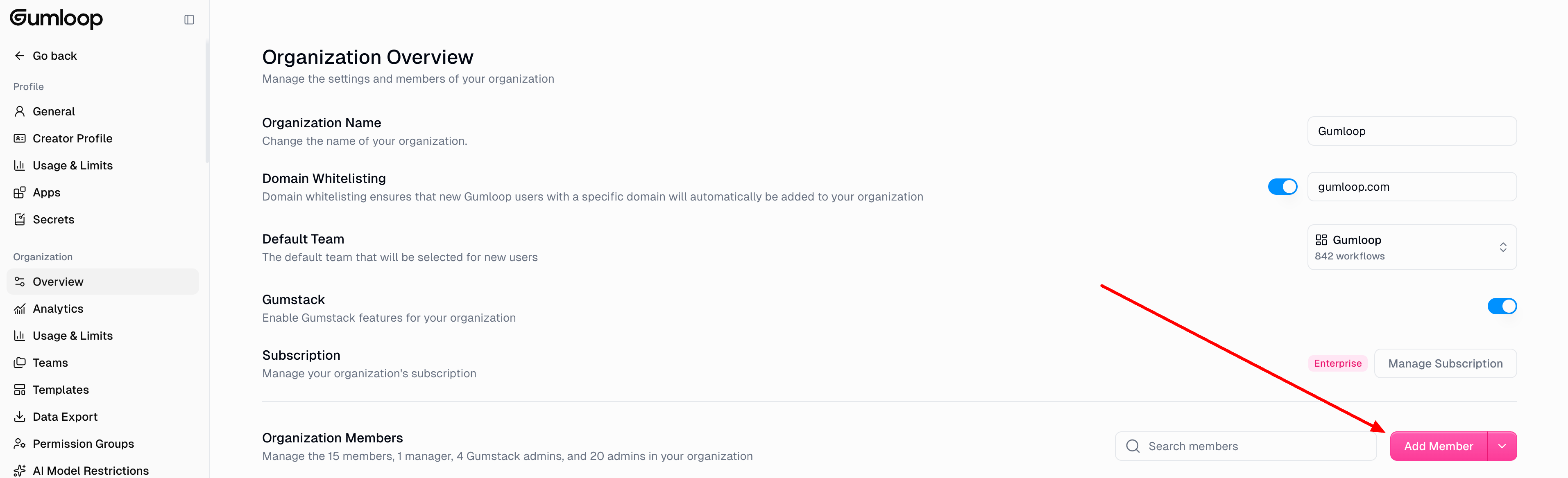
To add someone to your organization, go to Organization Settings, click Add Member, enter their email address, assign a role, and send the invite. You can also bulk-invite members by uploading a CSV file. You must be an Admin or Manager to invite new members.
Before You Start
You need an Admin or Manager role in the organization. Regular Members cannot invite others. See Organization Roles for details on each role.
Organization roles (Admin, Manager, Member) are available on the Pro plan and above. Free plan users do not have role distinctions.
Invite a Single Member
Go to Organization Settings.
In the members table, click Add Member.
Enter the person's email address.
Select a role from the dropdown:
Member — can use the platform, create agents and workflows, and join teams. Cannot manage other members or access org settings.
Manager — everything a Member can do, plus add/remove members, view org analytics, and manage templates.
Admin — full control including billing, role promotion/demotion, SSO configuration, and all org settings.
Click Send Invite.
The invitee receives an email with a link to join. If they already have a Gumloop account, they'll be added directly. If not, the link will prompt them to sign up first.
Bulk-Invite Members via CSV
If you need to add many people at once:
Go to Organization Settings.
Click the dropdown arrow next to Add Member and select Invite Members in Bulk.
Upload a CSV file with an
emailcolumn containing the email addresses you want to invite.Set a default role for all invitees using the role dropdown.
Optionally, customize the role, team assignment, or permission group for individual users before sending.
Click Send Invites.
Domain Restrictions
If your organization has a verified domain configured, Managers may only be able to invite users whose email matches that domain. Admins can invite any email address regardless of domain settings.
Changing a Member's Role After They Join
Go to Organization Settings.
Find the member in the members table.
Click the three-dot menu (⋮) next to their name.
Select the new role from the dropdown. The change takes effect immediately.
Note: Only Admins can promote or demote users to Admin or Manager roles. Managers can add and remove Members but cannot change roles.
Still Need Help?
If this didn't resolve your issue, reach out to support at support@gumloop.com.
Related Docs
Organization Roles — full breakdown of Admin, Manager, and Member permissions
Organizations and Teams — how organizations and teams are structured in Gumloop
Custom User Roles — advanced permission groups for Enterprise customers
SSO, SAML & SCIM — automated member provisioning for Enterprise