How Do I Assign a Specific Gmail (or Other Integration) Account to a Specific Agent?
Last updated: May 14, 2026
Every integration in your agent has a three-dot menu for picking which credential it uses. The options you see depend on whether the agent lives in your personal space or in a team. You can use a default credential, or pin a specific one.
Before You Start
- Connect the accounts you want to choose from at Settings → Your Apps (personal) or your team's Apps page (team).
- If you have multiple accounts for the same service, set one as the default on your Apps page so "Use Personal Default" / "Use Team Default" has something to fall back to.
The Four Credential Options
Open your agent, find any connected integration, and click the three-dot menu (⋮) next to it. Depending on where the agent lives, you'll see some or all of these:
- Use Personal Default — The agent uses each person's own default account for that service. This is the default behavior in both personal and team agents.
- Use Specific Account (personal credential) — In a personal-space agent, pick one of your connected personal accounts to pin to this agent.
- Use Team Default — In a team agent, everyone running the agent shares the team's default account for that service.
- Use Specific Account (team credential) — In a team agent, pin a specific team-connected account so every team member uses the same one.
Picking a Credential in a Personal Agent
Personal agents (created in your personal space) show two options in the credential menu: Use Personal Default and Use Specific Account.
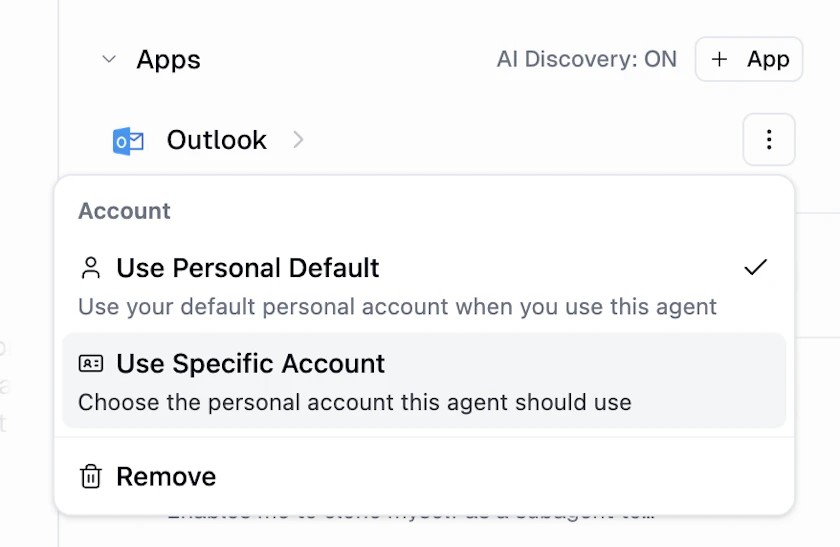
- Open the agent at gumloop.com/agents.
- Find the integration in the agent's tools list and click the three-dot menu next to it.
- Choose Use Specific Account. A dialog opens listing all your connected personal accounts for that service.

- Pick the account you want this agent to always use (e.g.,
info@company.com). - The integration row now shows the chosen account, confirming the pin.

Picking a Credential in a Team Agent
Team agents have three options: Use Personal Default, Use Team Default, and Use Specific Account (which lets you pick from the team's connected accounts).

- Open the team agent and click the three-dot menu next to the integration.
- Pick either:
- Use Team Default — everyone uses the team's default account for that service, or
- Use Specific Account — pin a particular team-connected account.
- Because this change affects everyone on the team, a confirmation dialog appears:

- Cancel — keep the current setting.
- Make a copy of this agent — create a personal copy instead of changing the shared agent (useful if you only want the change for yourself).
- Select team account — proceed and update the shared agent.
- If you chose Use Specific Account, pick the team account from the picker:

- The integration row shows the pinned team account:

Which Option Should I Pick?
- You want everyone running the agent to use their own account (e.g., each user's own Gmail) → Use Personal Default. This is the most private option and the right choice for most agents.
- You want this agent to always use one specific personal account of yours (e.g., always send from
info@company.comregardless of who runs the agent) → Use Specific Account on a personal agent. - Everyone on the team should share one team account (e.g., a shared
support@company.cominbox or team Google Drive) → Use Team Default or Use Specific Account on a team agent.
Good to Know
- This works for any integration that supports multiple connected accounts — not just Gmail.
- If a teammate runs a personal agent you've pinned to a specific account and they don't have access to that account, the system falls back to their own personal default for that service.
- Changing a team agent's credential affects everyone on the team, which is why the confirmation dialog appears before the change is applied.
- If you ever want to undo a pin, open the three-dot menu again and switch back to Use Personal Default or Use Team Default.
Still Need Help?
If this didn't resolve your issue, reach out to support at support@gumloop.com.