How to Stop or Disable a Scheduled Trigger
Last updated: March 26, 2026
To stop a trigger from running, open the three-dot menu (...) next to the task in your agent's Tasks section and select Disable or Delete. For workflow triggers, open the node library, search for trigger, and delete the Gumloop Time Trigger from the workflow.
Disable or Delete a Trigger on an Agent
All triggers are managed from the Tasks section of your agent's configuration page.
Open your agent and go to the Tasks section.
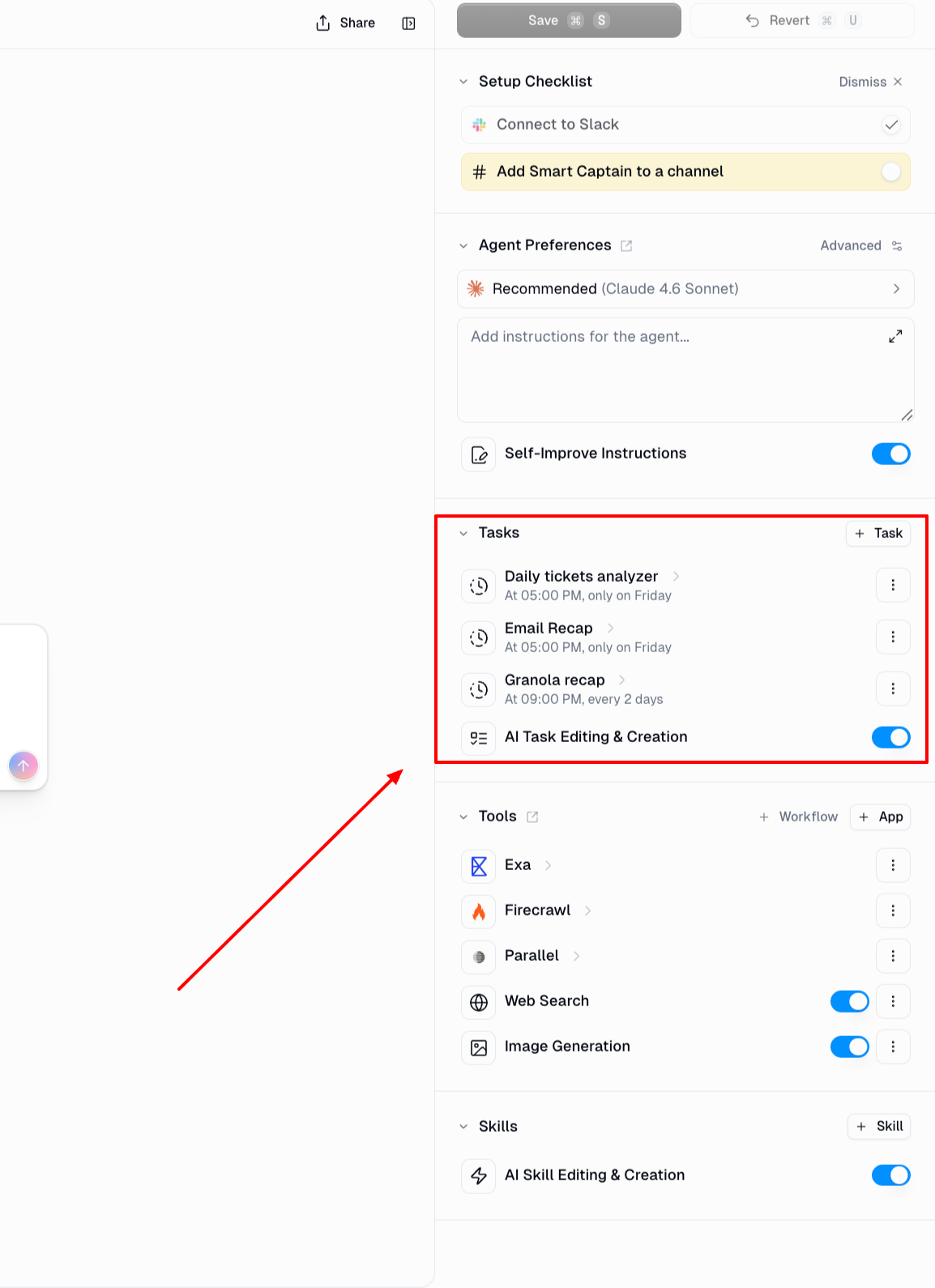
Find the trigger you want to stop.
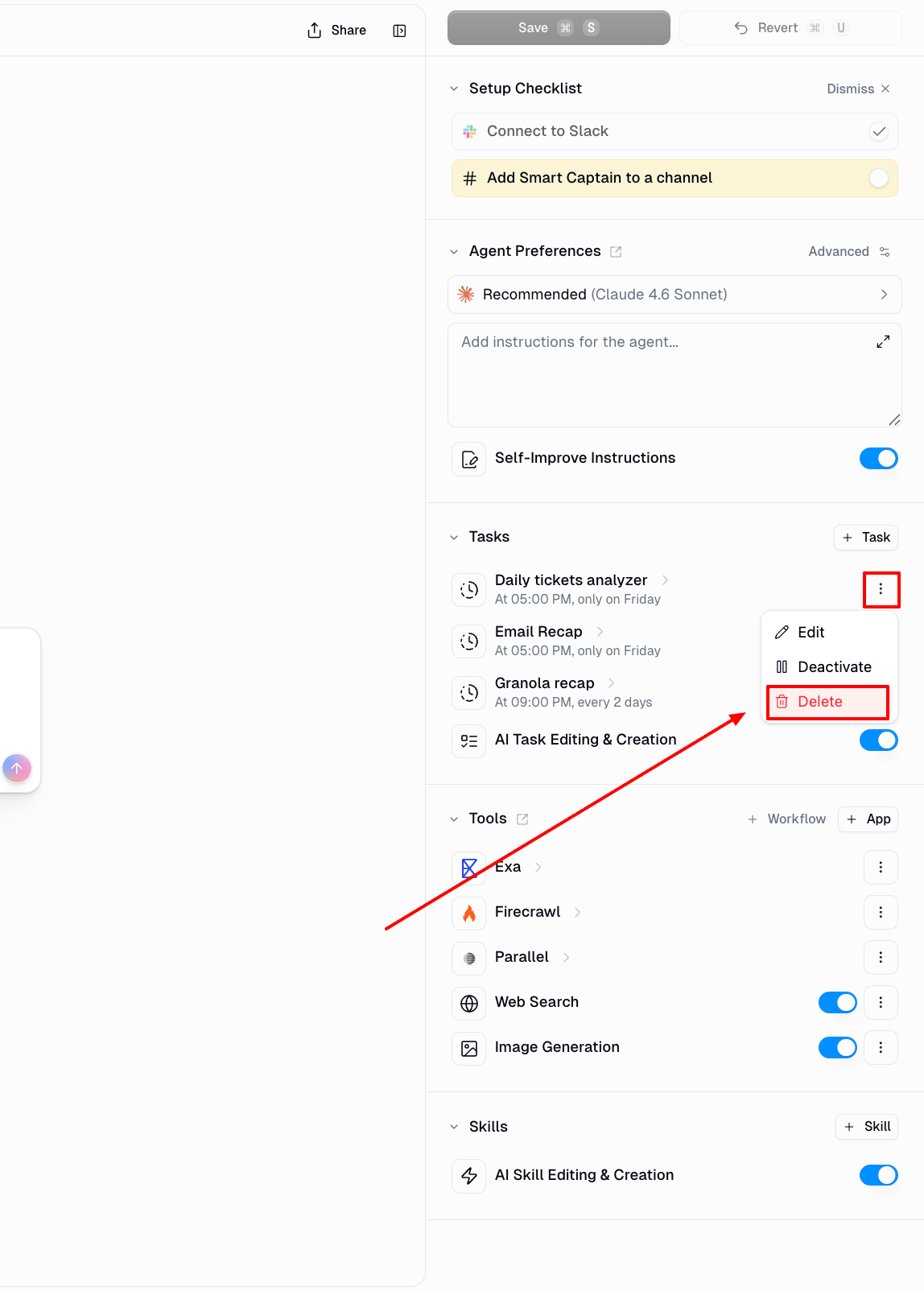
Click the three-dot menu (...) next to it.
Select Deactivate to pause it (can be re-enabled later), or Delete to remove it permanently.
Disable or Remove a Trigger on a Workflow
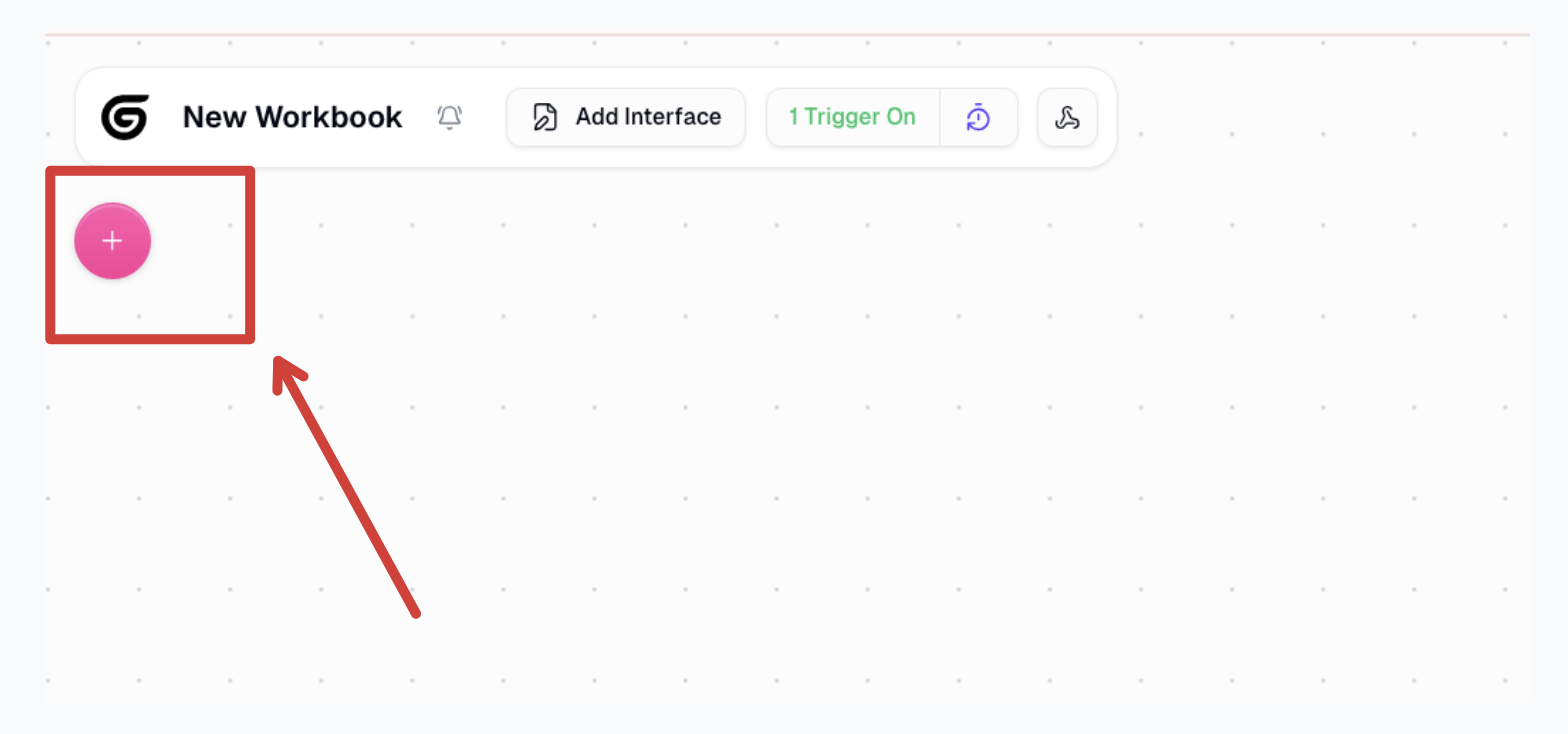
Open your workflow in the editor.
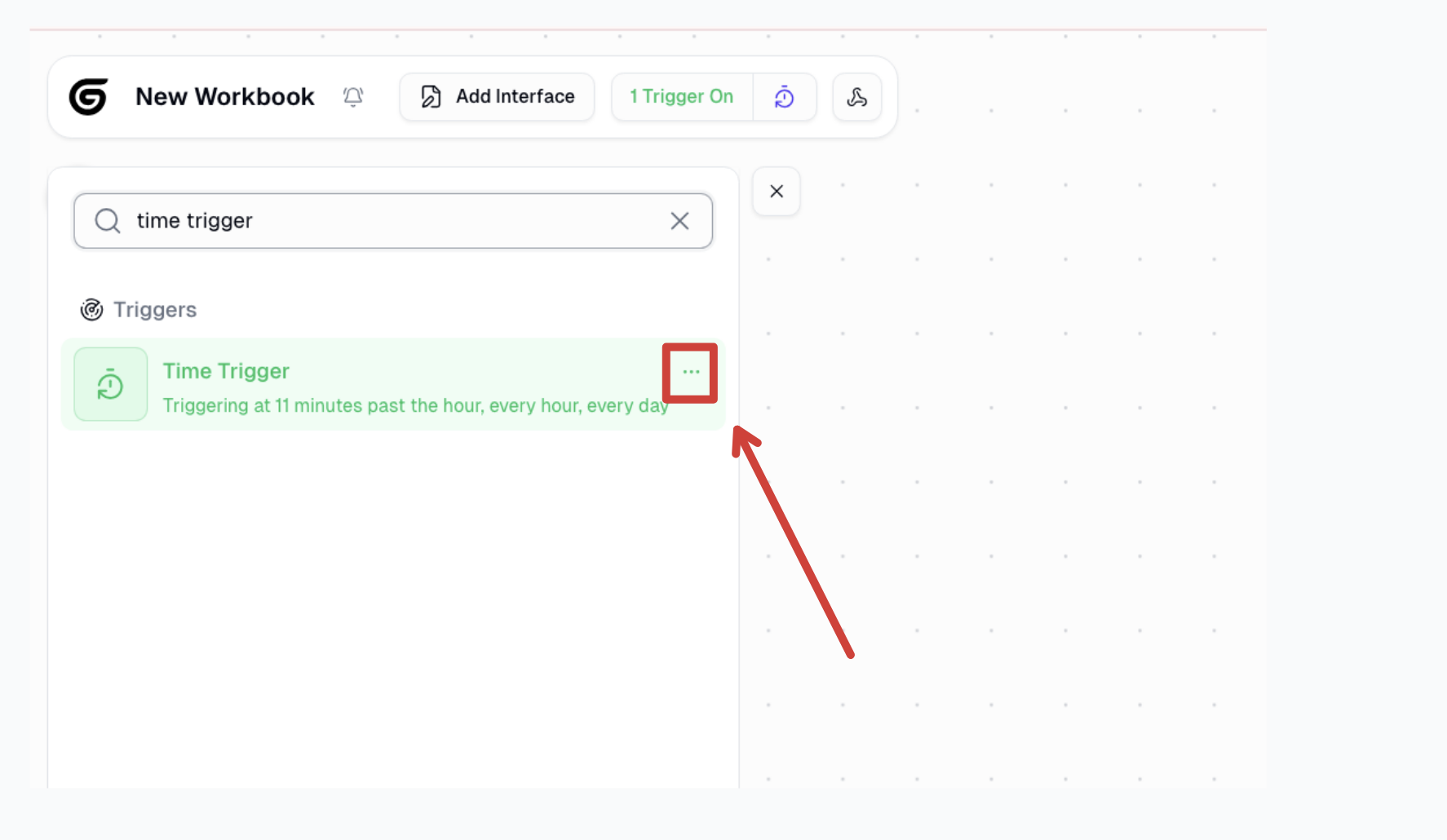
Open the node library and search for time trigger.
Locate the Gumloop Time Trigger and delete it from the workflow.
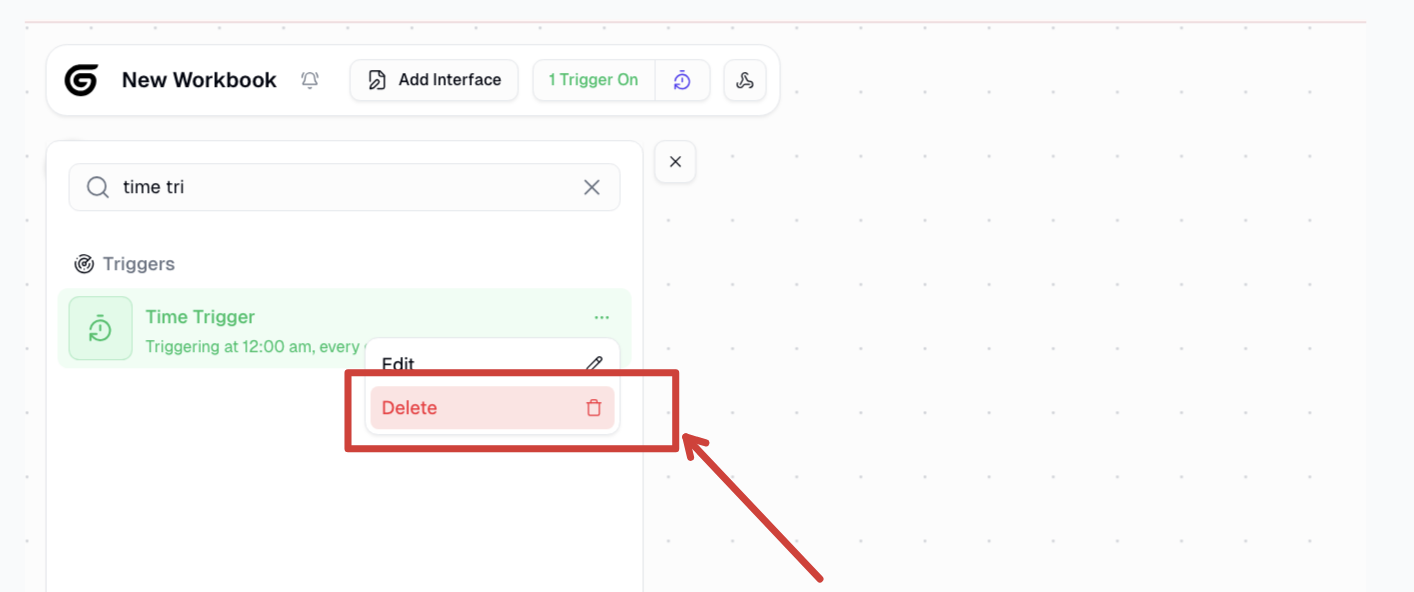
Click Save.
Good to Know
One-time tasks are deleted after execution. A one-time scheduled task is automatically removed from the Tasks list after it runs, whether it succeeds or fails.
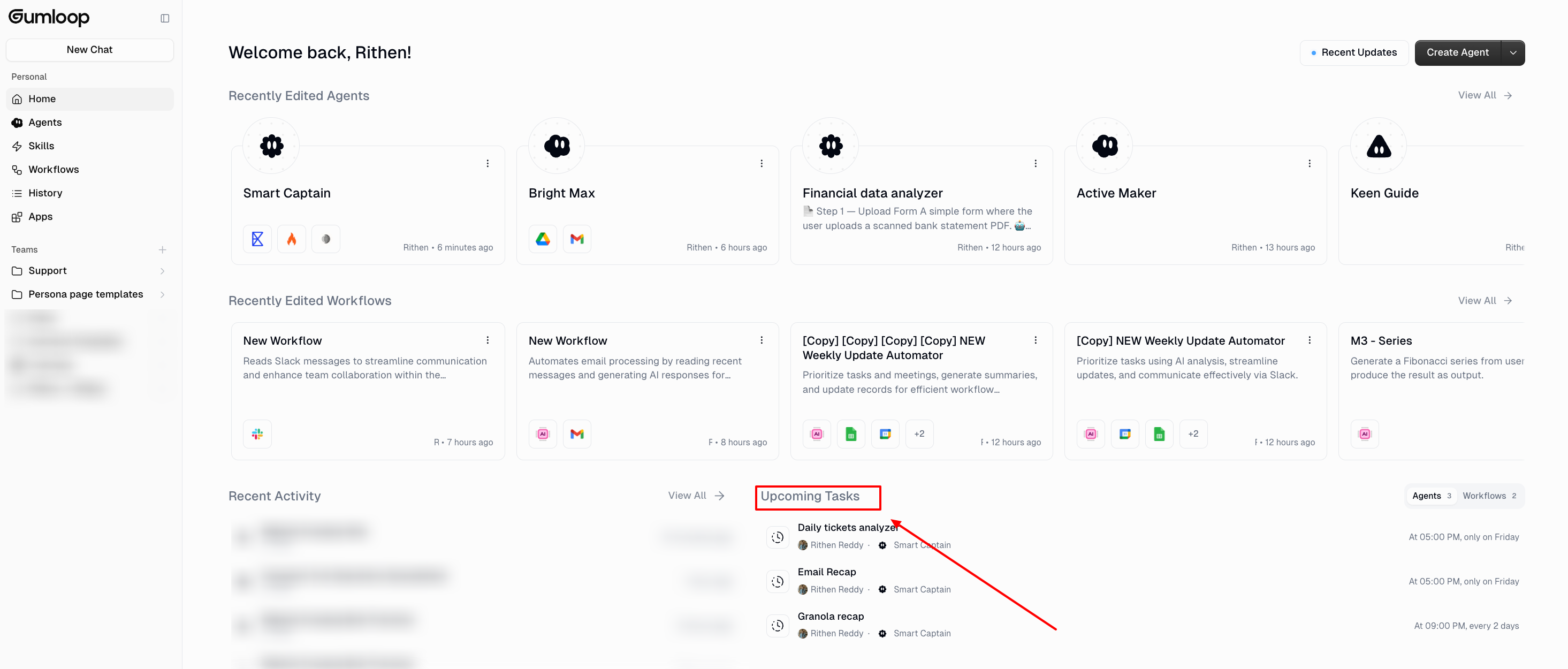
Use the Hub page to see all active triggers. Go to the Home page to view all active workflow triggers across your personal space. This is useful for finding triggers you may have forgotten about, as well as any orphaned triggers from older workflows or agents.
Agent concurrent interaction limit. Agents have a limit of 10 concurrent interactions per user. If your agent trigger appears active but isn't firing, check whether other interactions are consuming this limit. As a workaround, consider using a workflow with an Agent Node instead.
For anything else, reach out at support@gumloop.com or in the shared Slack channel.