My Agent Can’t Search Slack — How Do I Enable Search Scopes?
Last updated: April 1, 2026
Slack search scopes are optional permissions that aren't granted by default. To enable search, revoke your existing Slack credentials, re-add them, and select the search scopes during the "Control Scopes" step of authentication.
Symptoms
Your agent says it cannot search Slack or that it's missing the
search:readorsearch:read.publicscope.You see a message like: "The
search:read.publicpermission is still missing from your Slack integration."Reading and sending messages works fine, but the Search tool fails or is unavailable.
Cause
Gumloop's Slack integration requests a set of default scopes when you first authenticate — these cover reading messages, sending messages, managing channels, and similar actions. However, the search-related scopes (search:read.public, search:read.private, search:read.files, etc.) are optional and are not included unless you explicitly select them during authentication.
Without these scopes, your agent can still read from and write to specific channels, but it cannot search across your workspace for messages, files, or people. Enabling search scopes makes the agent significantly more dynamic — it can find relevant conversations, look up context, and perform better overall.
How to Enable Search Scopes
Step 1: Revoke your existing Slack credentials
Go to your Credentials page (Settings → Credentials), filtered to Slack.
Find your existing Slack credential and click the trash icon to revoke it.
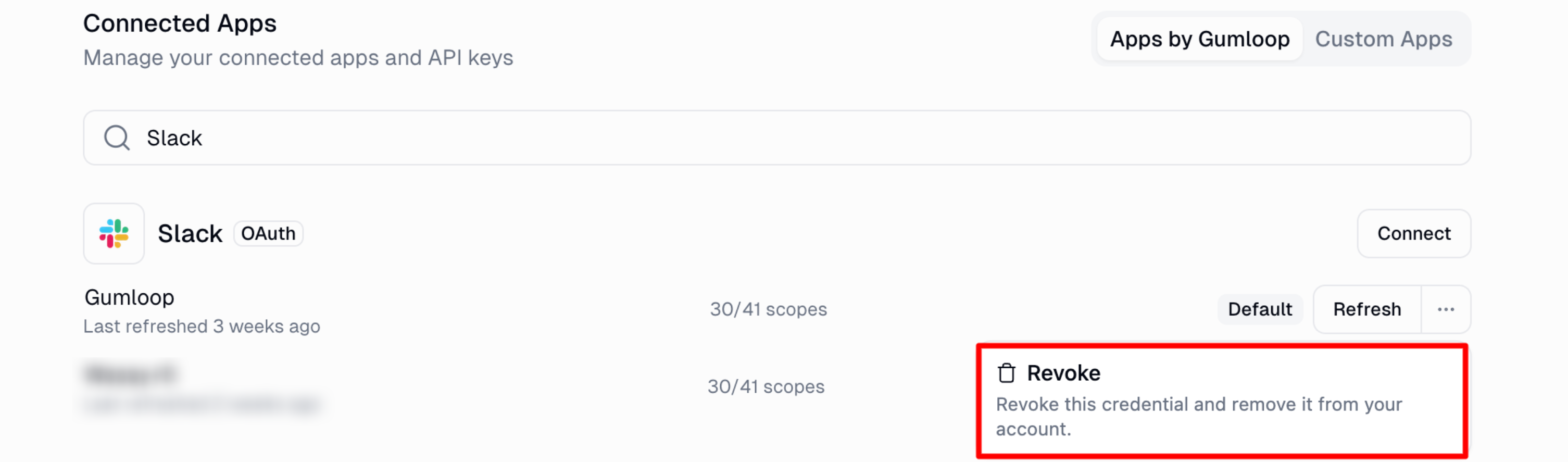
Step 2: Add new Slack credentials with search scopes
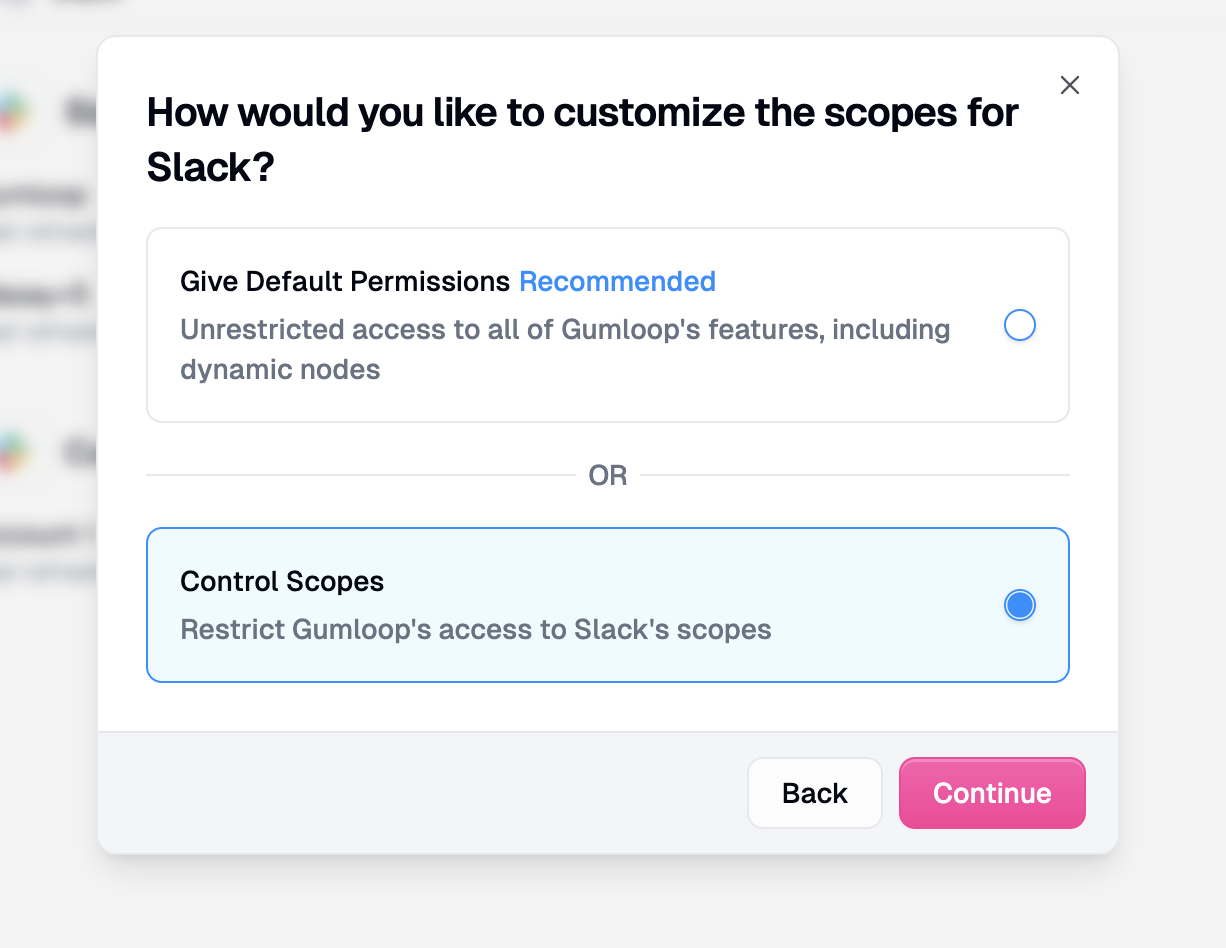
On the same Credentials page, click + Add next to Slack.
You'll see two options: Give Default Permissions and Control Scopes. Select Control Scopes.
In the scope selection dialog, scroll down to the search-related scopes (or use the search bar to filter for "search") and check the ones you need:
search:read.public— Search messages in public channelssearch:read.private— Search messages in private channelssearch:read.im— Search direct messagessearch:read.mpim— Search group direct messagessearch:read.files— Search filessearch:read.users— Search users
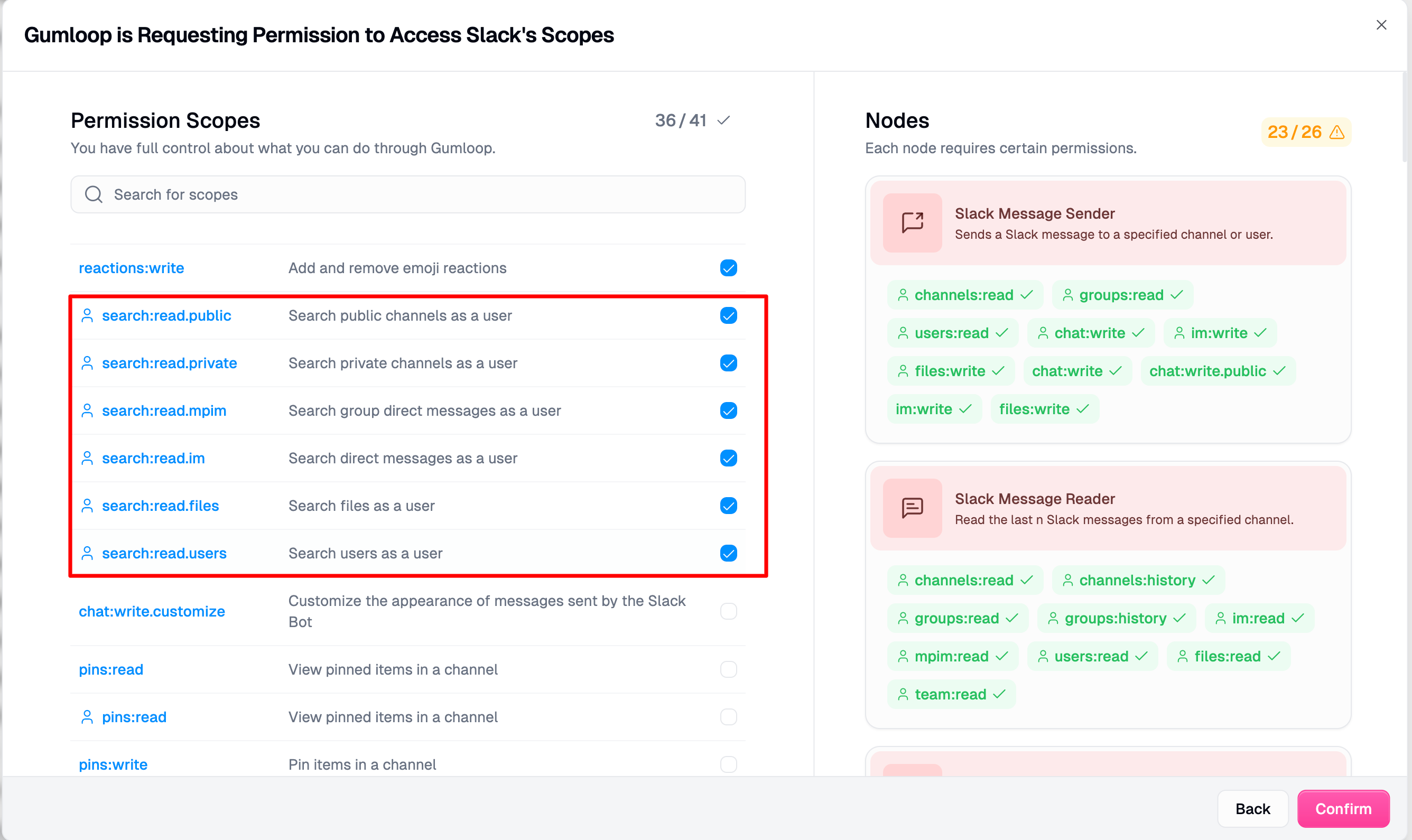
Confirm your selection and complete the Slack OAuth flow in the browser window that opens.
Step 3: Verify it works
Open your agent and try a search prompt, for example: "Search Slack for messages about quarterly report."
If the agent returns search results, the scopes are working correctly.
Good to Know
You don't need to remove the Slack tool from your agent. The tool itself doesn't change — only the underlying credential's permissions do. Once you re-authenticate with the search scopes, the agent's existing Search tool will start working.
Default scopes still work. You can read from and write to channels with just the default scopes. Enabling search scopes is only necessary when you want the agent to search across your workspace.
This applies to any Gumloop integration, not just Slack. Other integrations may also have optional scopes that unlock additional tools. The "Control Scopes" option during credential setup lets you manage this for any supported integration.
If you're using shared team credentials, the team admin who owns the credential will need to revoke and re-add it with search scopes for the whole team.
Still Need Help?
If this didn't resolve your issue, reach out to support at support@gumloop.com.
Related
Slack MCP Integration — Full reference for all Slack tools and capabilities
Credentials — How credentials and authentication work in Gumloop
How to Restrict Which Tools an Integration Can Use in Your Agent