A Service I Use Published an MCP Server but I Don’t See It in Gumloop — How Do I Connect It?
Last updated: June 18, 2026
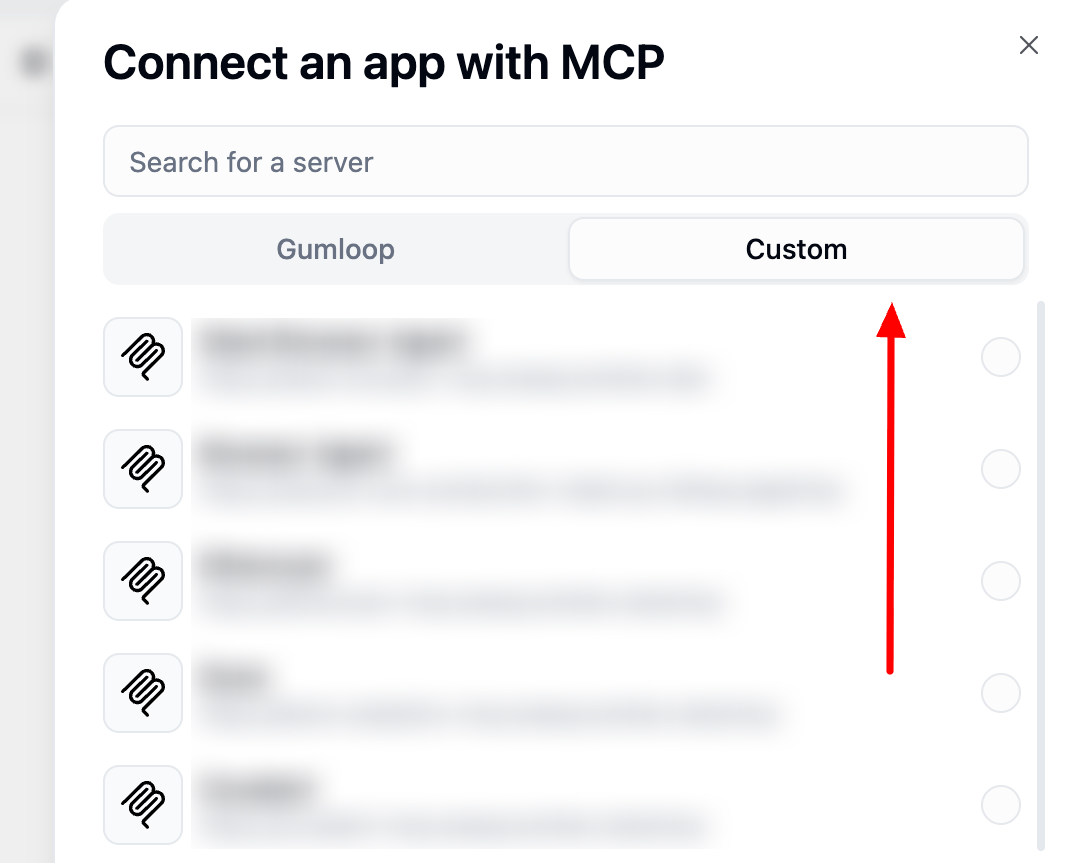
If a service like Meta, Stripe, or Cloudflare publishes its own MCP server, you can connect it to your agent even when it isn't a built-in app. In your agent, open +App → the Custom tab → Add MCP Server, paste the server's HTTPS URL, and click Connect.
Connect It to Your Agent
In your agent, click +App (or Add tools), switch to the Custom tab, and click Add MCP Server.
Paste the MCP server URL from the third-party service. It must start with
https://.Add a Label so you can find it later.
If the server needs authentication, paste your token in Access Token / API Key, or add an Additional Header (
Header-Name: value). Some servers start an OAuth flow automatically.Click Connect.
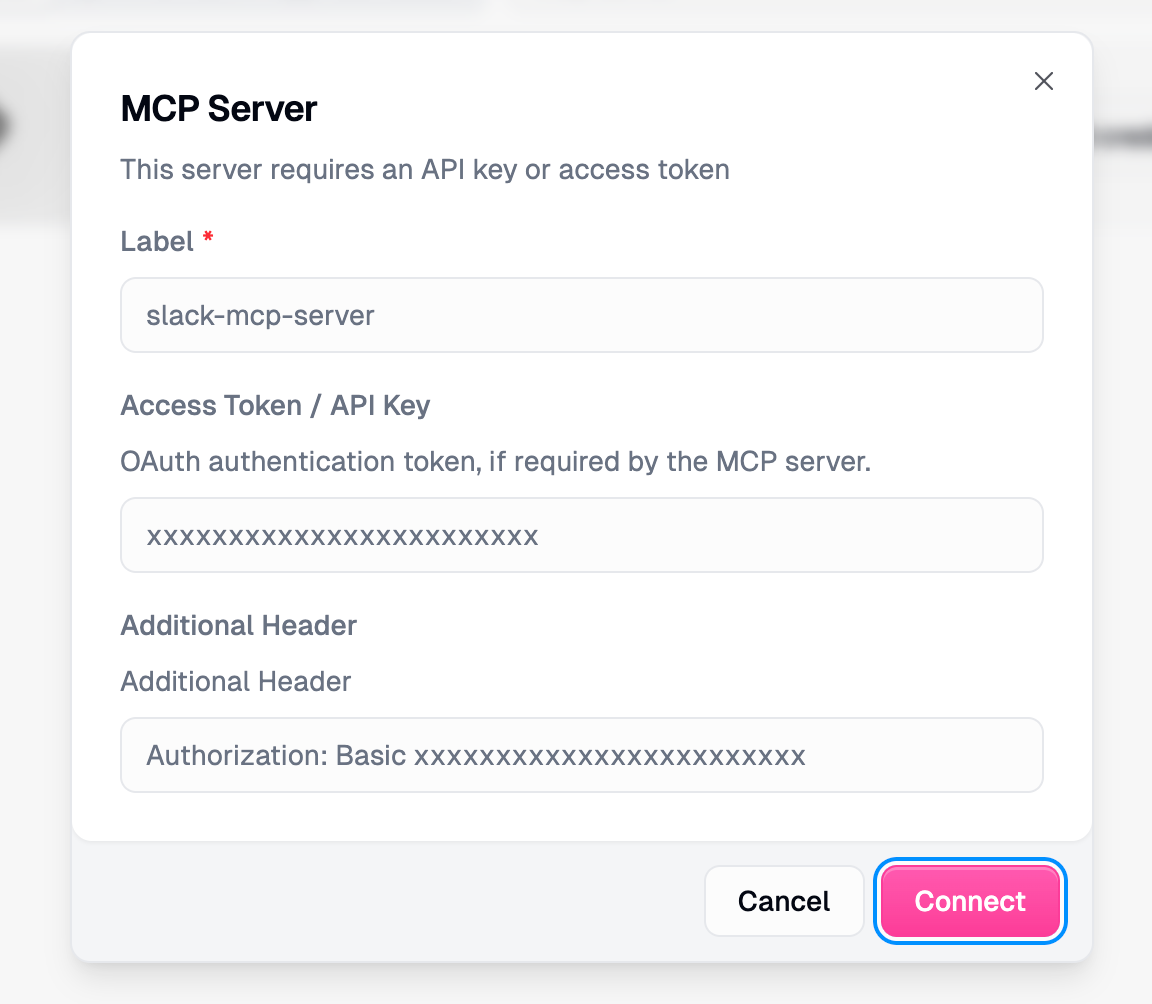
Your agent now has every tool the server exposes. Ask it to “list your available tools” to confirm the connection works.
Where to Find the MCP URL
The URL is published by the service, not Gumloop. Check their developer docs (search “MCP server”), API/integrations page, or changelog. If no URL exists, see the docs on building your own custom MCP server.
Requirements
URL must use HTTPS — HTTP is rejected.
Server must be publicly accessible (no
localhostor private URLs).Server must support Streamable HTTP or SSE transport.
Troubleshooting
Can’t connect: Confirm the URL starts with
https://and is publicly reachable. Some services require you to enable API access in their dashboard first.Authentication failed: Check that your token is valid and unexpired. If the server uses OAuth, complete the authorization flow when prompted.
Tools not appearing: Ask your agent to “list available tools from [server name]” to force a refresh.
Claude models ignore custom headers: Anthropic (Claude) models don’t forward the Additional Header field. Use Access Token / API Key with a bearer token instead, or switch to an OpenAI or Gemini model.
Prefer to Set It Up Once?
You can add the server in Settings → Credentials (search “MCP Server”) and reuse it across agents from the Custom tab.
Still Need Help?
If this didn’t resolve your issue, reach out to support at support@gumloop.com.