How Do I Restrict the Actions My Agent Can Take?
Last updated: May 14, 2026
Use App Rules to block specific tool calls — like sending email to a particular address or posting in a sensitive Slack channel. Rules are enforced at the infrastructure level before the tool runs, so the agent cannot bypass them. You can scope a rule to a single agent or to your entire organization.
Why an App Rule (Not a System Prompt)
A system prompt instruction is guidance the agent reads. An App Rule is enforcement: every tool call is evaluated against your rules before it executes, and if a rule matches, the call is blocked regardless of what the agent intended.
The Two Scopes
Scope | Applies to | Where to manage |
|---|---|---|
Agent | One specific agent's tool calls | Agent config → app detail → Rules tab, or via agent chat |
Organization | Every user and agent in the org |
Rules only add restrictions. An agent-level rule cannot un-block what an org-level rule has blocked — if any matching rule blocks a call, the call is blocked.
Agent-Level Rules
Restrict actions for a single agent. There are two ways to create one.
Option A: Ask the Agent in Chat (Easiest)
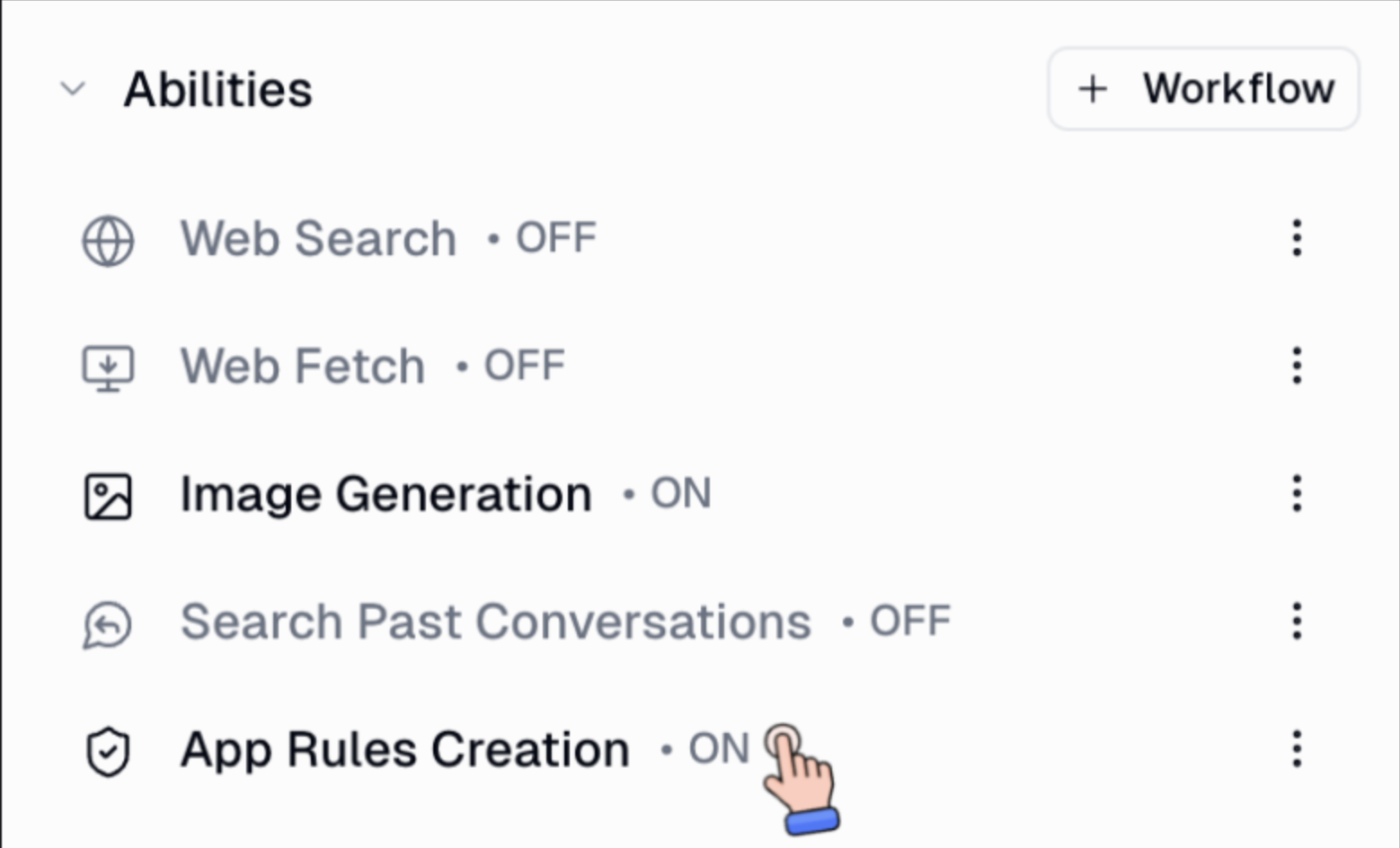
Open the agent's configuration panel and turn on App Rules Creation under Abilities.
In a chat with the agent, describe the rule in plain English, e.g.: "Create an App Rule to block Gmail send_email when the recipient is alice@example.com."
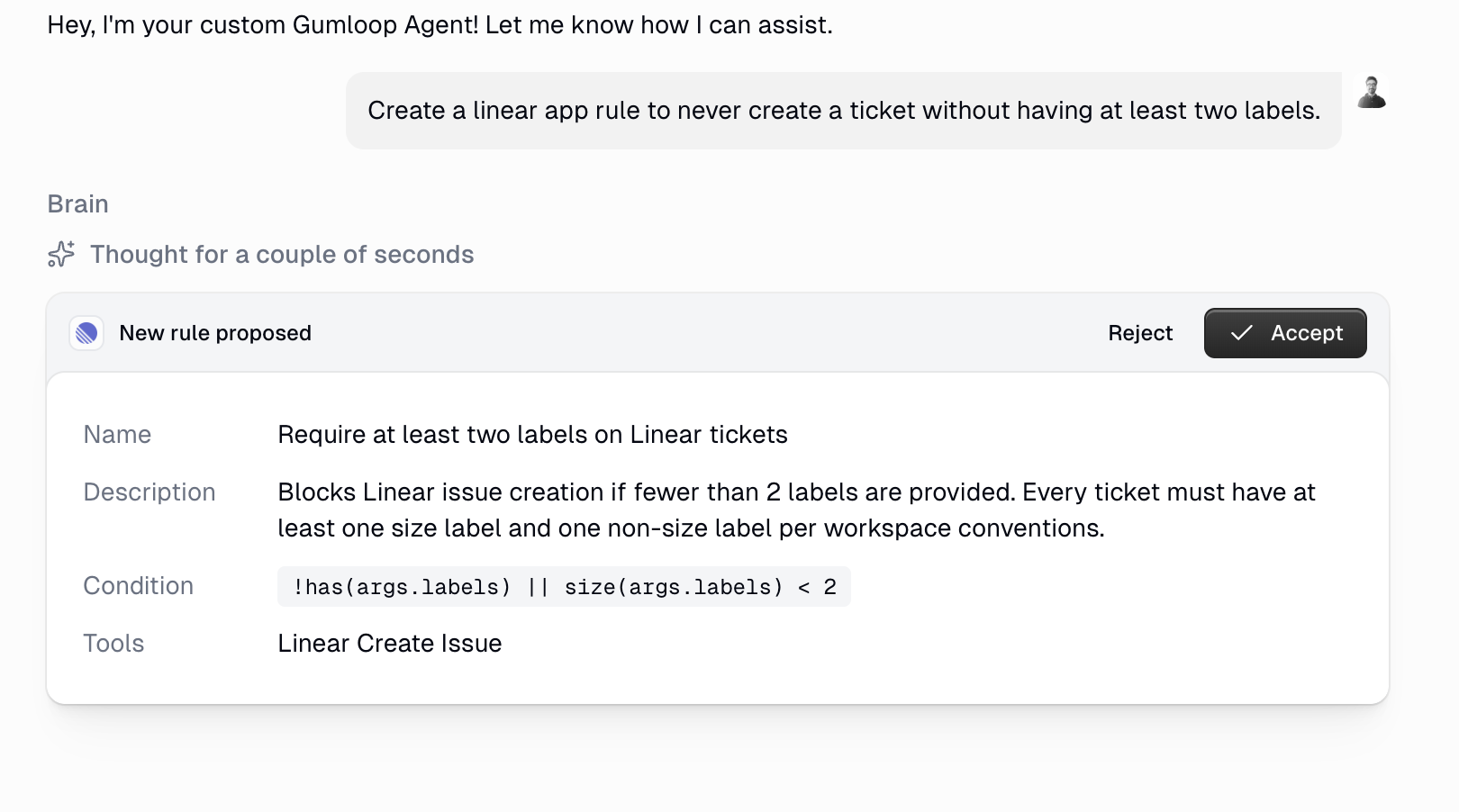
The agent proposes the rule as a card in chat. Click Accept to activate it (or Reject to discard).
Option B: Agent Builder → App → Rules Tab
Open your agent, find the connected app (e.g., Gmail), and open its detail view.
Go to the Rules tab and click + App Rule.
Describe the rule in plain English in the AI rule builder. Review the generated Phase, Action, Tool scope, and CEL condition.
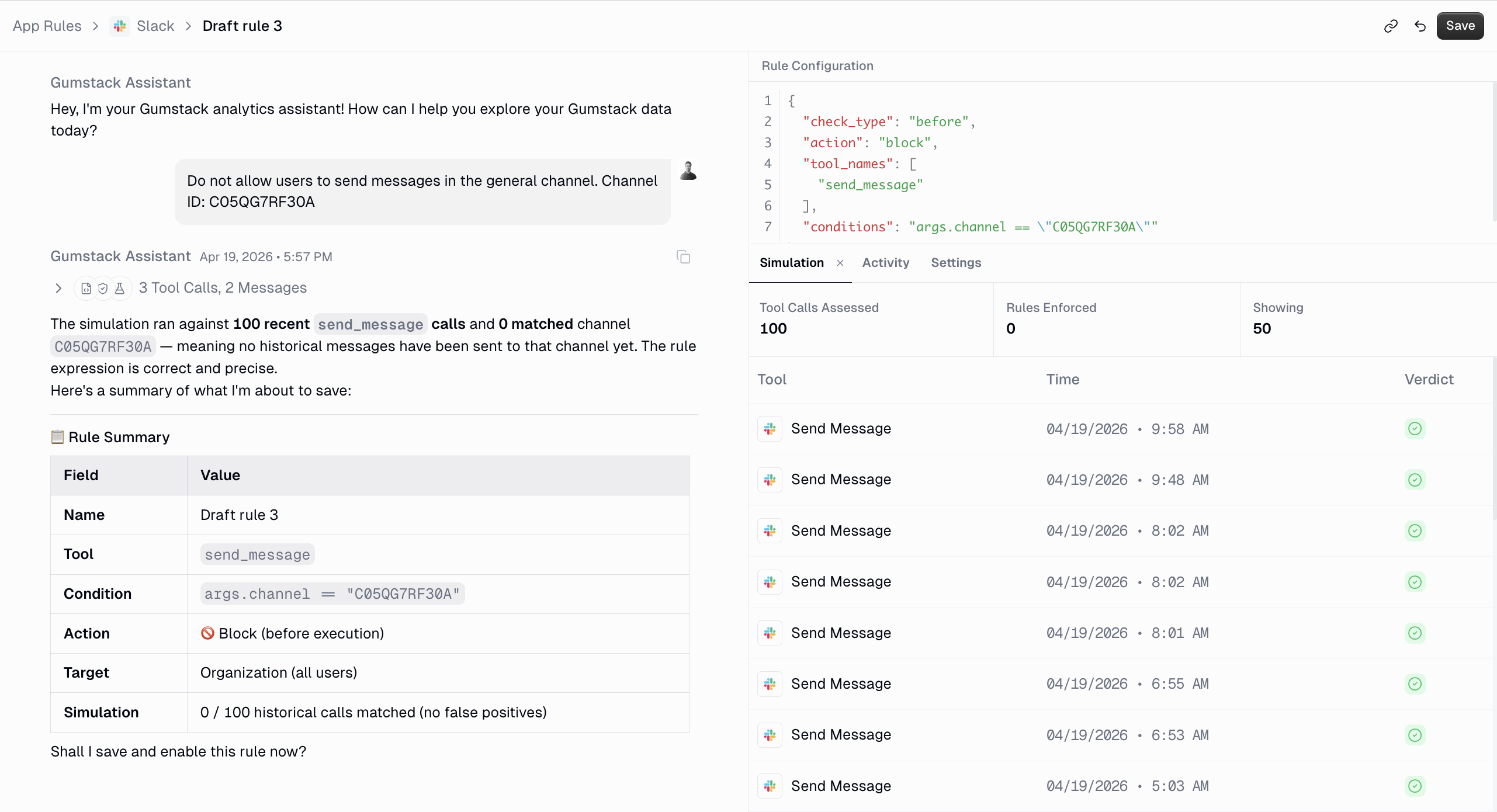
Check the Simulation panel — it runs the rule against recent tool calls so you can spot false positives before saving.
Click Save.

Organization-Level Rules
Use an org-level rule when an action should be blocked for everyone in your organization, regardless of which agent or user makes the call.
Open the App Rules tab and click + App Rule.
Pick the app and build the rule in the AI rule builder.
What Gets Returned When a Rule Blocks a Call
The agent receives an error explaining the restriction (and typically passes that on to the user):
Agent-level:
This action has been restricted by a rule configured for this agent.Org-level:
This action has been restricted by your organization's security policy.
Tips
Tag instead of block if you only want to monitor an action. The call still runs, but it's flagged in Enforcement Activity for later review.
Use the simulation panel in the rule builder before saving — it catches false positives against real recent tool calls.
Rules apply everywhere the agent runs: direct chat, Slack, or inside a workflow.
Related Docs
Still Need Help?
If your rule isn't firing as expected, reach out to support at support@gumloop.com.