My Agent Says an Integration Is Read-Only or Not Connected After I Reconnected It — How Do I Fix It?
Last updated: May 14, 2026
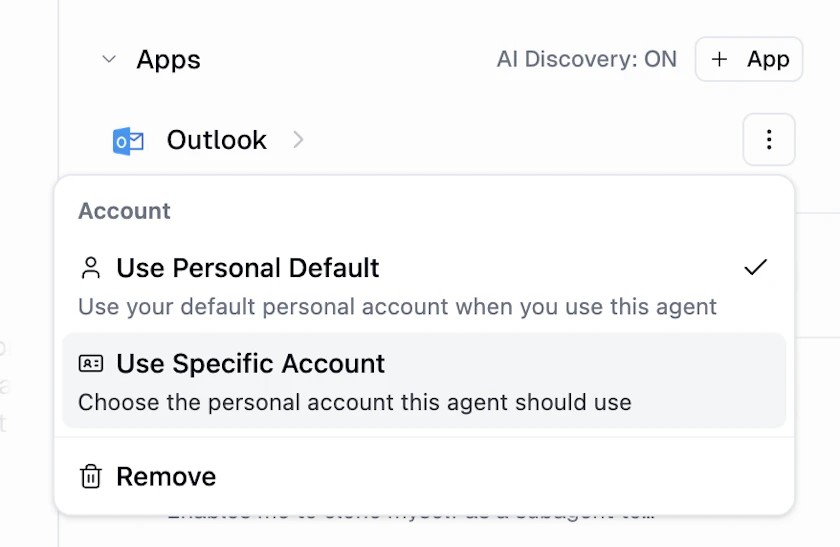
This usually means your agent is still pinned to the old credential from before you reconnected. Open the agent, click the three-dot menu next to the integration, and switch it from Use Specific Account back to Use Personal Default (or re-pick the account from the picker). Repeat on each affected agent.
Symptoms
Your agent says it has
read-only access, that the integrationisn't connected, or that it needs you toauthenticate— even though your account at Settings → Apps is connected and healthy.This started right after you disconnected and reconnected the integration (often to add scopes, switch accounts, or fix an OAuth error).
Some of your agents still work with the same integration — only the ones pinned to a specific account are failing.
The tool call appears to run but the agent reports back that it couldn't complete the action.
Cause
When you disconnect and reconnect an integration in Gumloop, the platform replaces the old credential record with a new one that has a different internal ID. The new credential becomes your default, but any agent that was pinned to the old credential via Use Specific Account still references the now-deleted ID. The credential lookup fails, and the agent paraphrases the resulting error in plain language — commonly "read-only access", "not connected", or "needs authentication".
Agents set to Use Personal Default are not affected, because they always resolve to whatever your current default account is.
How to Fix It
Open the affected agent at gumloop.com/agents.
Find the integration (e.g., Gmail) in the agent's tools list and click the three-dot menu (⋮) next to it.
Switch the selection to one of:
Use Personal Default — recommended if the newly reconnected account is your default. The agent will pick it up automatically.
Use Specific Account — if you need this agent to always use one particular account, re-open the picker and select the account again. This rebinds the pin to the new credential record.
Save the change and re-run the agent on the action that was failing.
Repeat for every agent that uses the reconnected integration with Use Specific Account. Agents already set to Use Personal Default do not need any changes.
How Do I Know It Worked?
Ask the agent to perform the action that was failing (e.g., send a test email). It should complete the tool call and reply with a success confirmation instead of an authentication or read-only message.
Good to Know
This applies to any integration that supports pinning a specific account — not just Gmail.
You'll need to repeat the fix any time you re-create a credential record — for example, after disconnect/reconnect cycles, scope changes, or switching to a different account on the same provider.
For details on how the three pinning options work, see How Do I Assign a Specific Gmail (or Other Integration) Account to a Specific Agent?
Still Need Help?
If this didn't resolve your issue, reach out to support at support@gumloop.com.