How Do I View Run History for a Workflow?
Last updated: April 7, 2026
Open your workflow and click Previous Runs to see every past execution. You can also retrieve run history programmatically via the API.
How to View Run History
From the workflow:
Open your workflow.
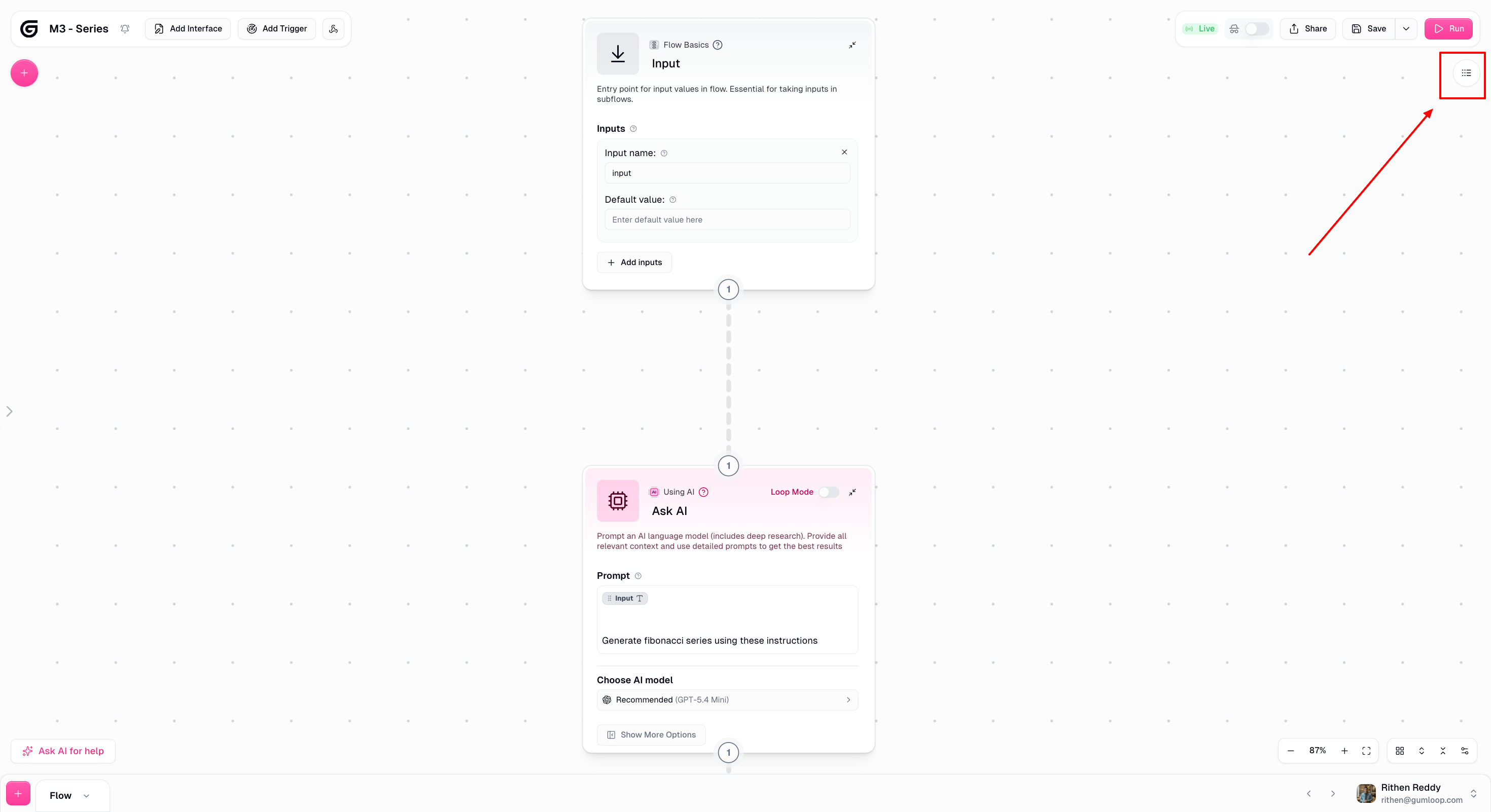
Click the Previous Runs icon in the top-right corner of the canvas, next to the Run button.
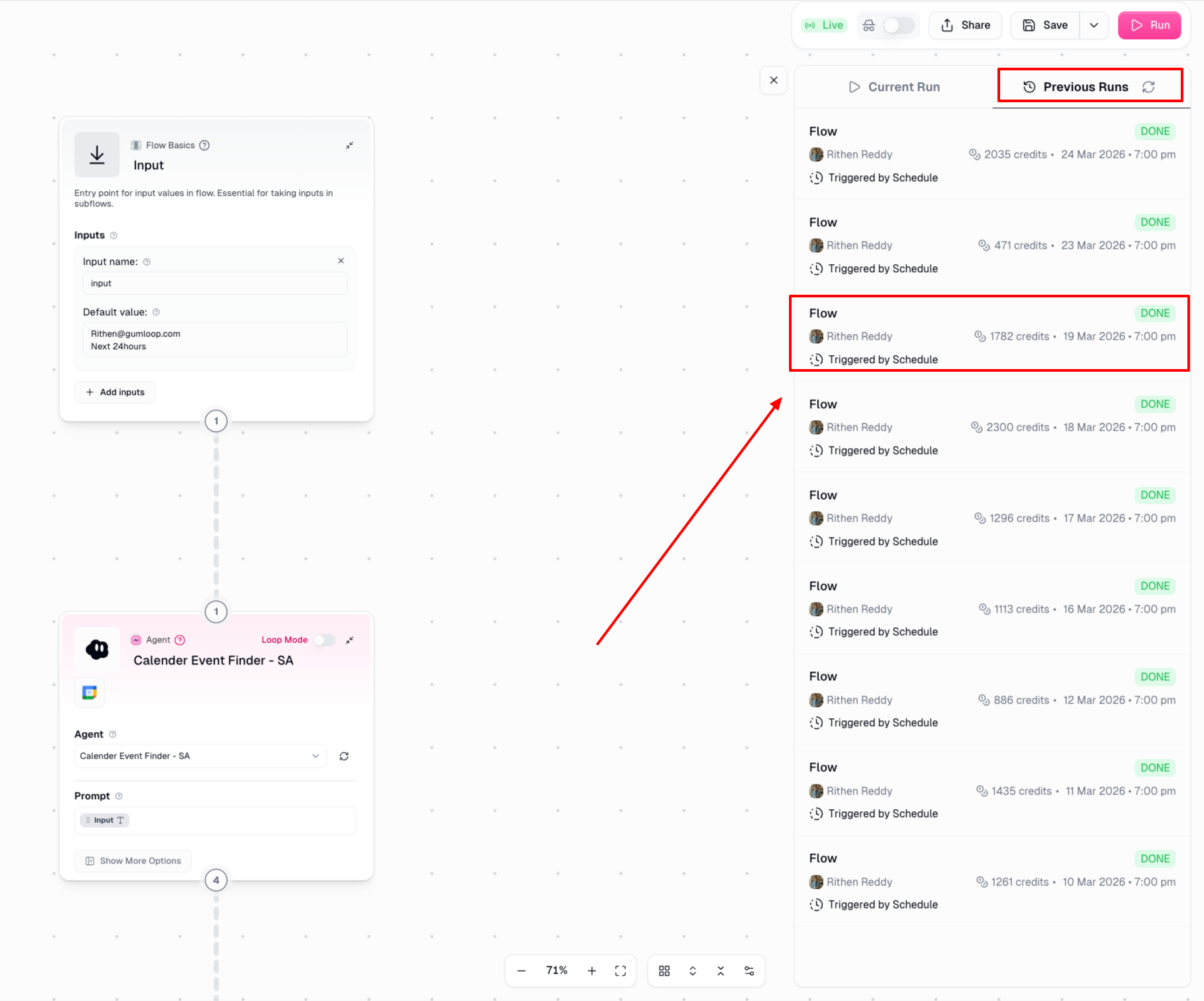
Click any run from the list to open its Run Log.
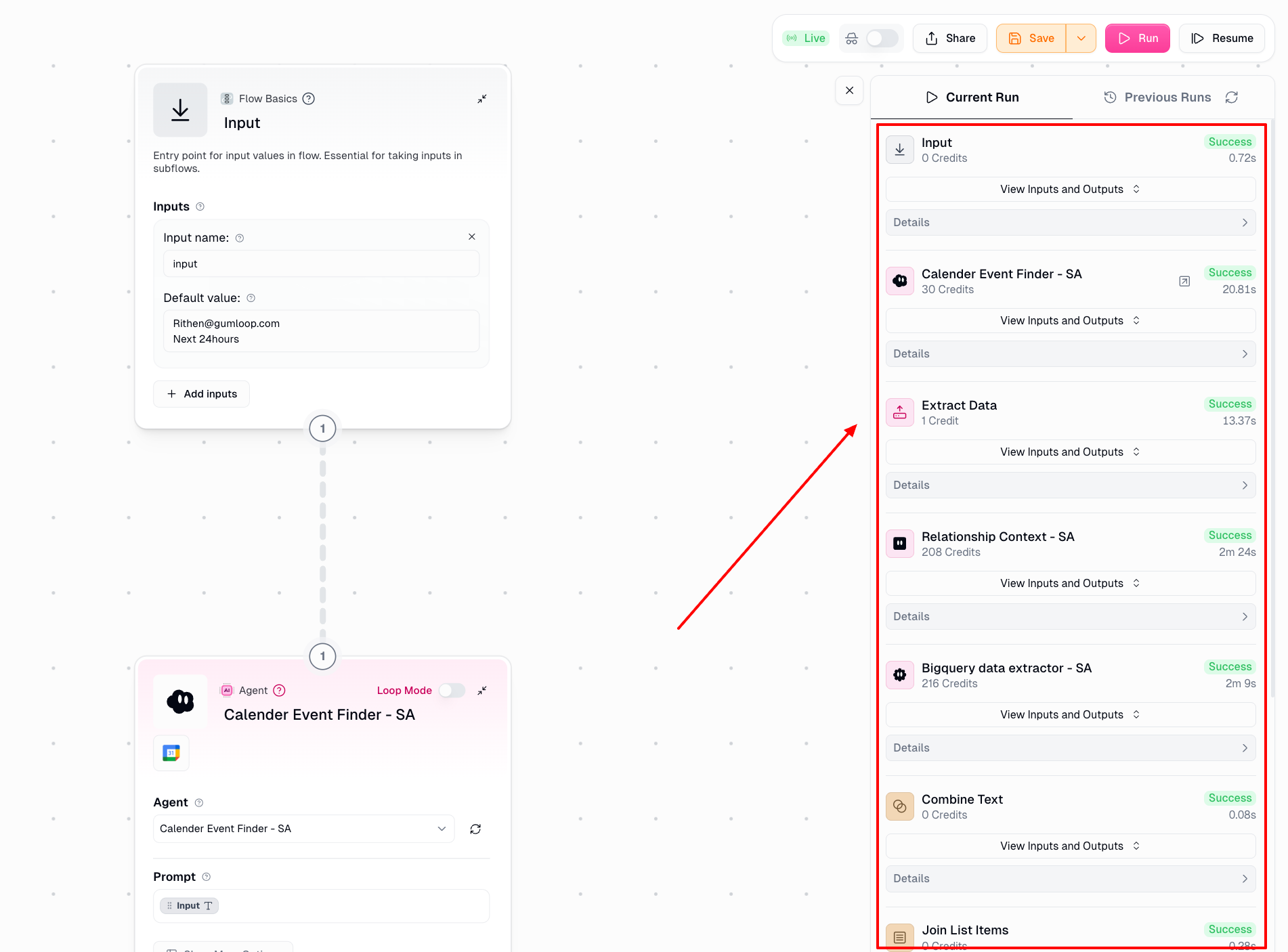
The Run Log shows execution status per node, time taken, credits consumed, and the full input and output data for every node.
If you don't see the Previous Runs tab, close the Gummie chat panel on the left side of the screen — the tab is hidden when the chat is open.
Via the API:
Retrieve run history programmatically using: GET /api/v1/get_pipeline_run_history
See the full reference: Retrieve Run History.
Good to Know
Previous runs are only available for saved workbooks. If you ran a workflow without saving it and came back later, go to the History page to find and search for those runs.
If your workflow is in a shared team space, the run history includes runs from all team members — not just yours.
Related
Still Need Help?
For anything else, reach out at support@gumloop.com or in the shared Slack channel.