My Workflow Edits Aren't Taking Effect on My Scheduled Trigger — How Do I Fix It?
Last updated: May 19, 2026
Your trigger is running an older saved checkpoint of the workflow instead of your latest edits. To fix it, open your save menu, and click Make This Checkpoint Live — triggers always run whichever checkpoint is currently Live.
Symptoms
You edit your workflow (e.g., change a Send Email subject line or body) and click Save, but the next scheduled run produces the old output.
Re-running the trigger manually still uses the old version.
Removing and re-adding the trigger doesn't change anything.
When you reopen the editor, your edits are saved — but the trigger keeps firing the previous version.
Cause
Every workflow has one Live Checkpoint. Triggers, interfaces, and webhooks always run whatever is marked Live — not necessarily the version open in your editor. Normally you're editing the Live Checkpoint directly, so saved changes apply immediately. But if a different (older) saved checkpoint is currently set as Live, your edits land on the draft while the trigger keeps using the Live one.
This typically happens after you've used Save & Create New Checkpoint in the past or rolled back to an older snapshot — the Live pointer stayed on that older snapshot instead of moving forward with your edits.
How to Fix It
Open your workflow in the workflow editor.
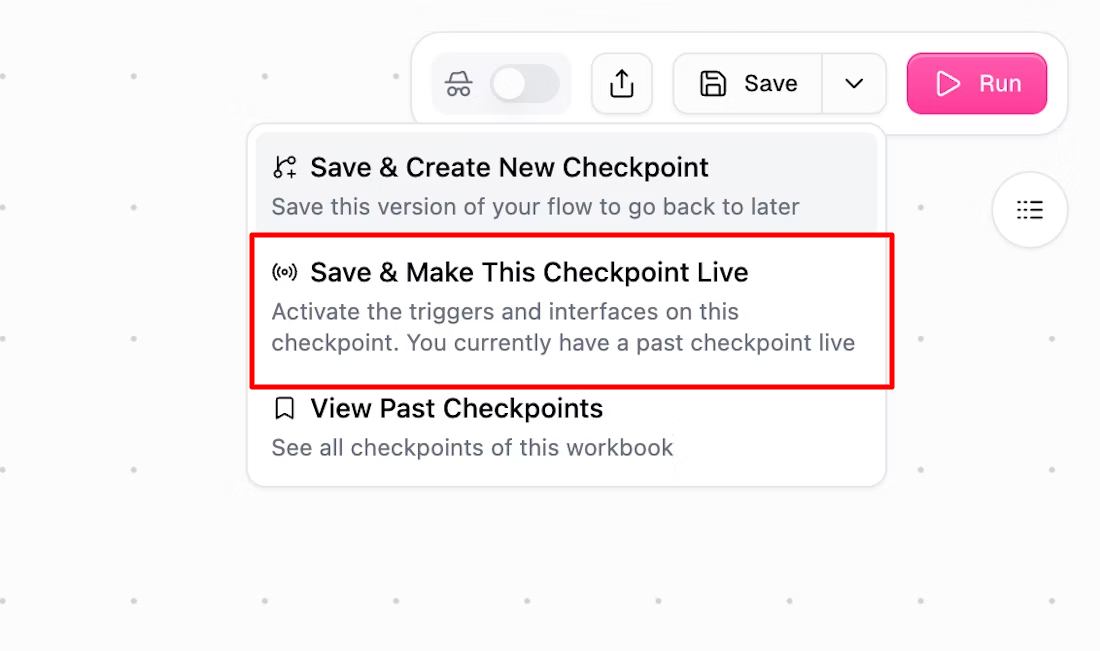
Click the 'Save' menu
Select Make This Checkpoint Live.
Your trigger will now run this checkpoint on the next scheduled fire.
How Do I Know It Worked?
The Live indicator should now sit on the checkpoint containing your edits.
Run the workflow manually (or wait for the next scheduled fire) and confirm the output reflects your latest changes.
Avoiding This in the Future
If you keep your current draft as the Live Checkpoint (the default behavior), saves apply to your triggers in real time and you never have to promote anything manually. You only need Make This Checkpoint Live when a different, older checkpoint is currently the Live one — for example, after rolling back or creating multiple snapshots.
Still Need Help?
If this didn't resolve your issue, reach out to support at support@gumloop.com.