My Slack-Deployed Agent Is Sending Double Messages — How Do I Fix It?
Last updated: April 1, 2026
When you deploy an agent to Slack and connect the Slack tool to the same agent, the agent can sometimes send two messages for a given response — one from the Slack deployment and one from the Slack tool's
Send Messageaction. To fix this, disable theSend Messagetool on the Slack integration inside your agent's configuration.
Symptoms
Your agent replies twice in the same Slack thread every time someone @mentions it.
One message appears as your agent (or your Custom Slack App bot), and a second message appears from the Gumloop bot — both containing the same (or very similar) content.
The duplicate message often shows up slightly after the first, because the Slack tool executes as a separate step in the agent's reasoning.
Why This Happens
There are two completely independent ways an agent can post a message into Slack, and if both are active at the same time, the agent can use both:
Slack deployment response — When you deploy an agent to a Slack channel (or use a Custom Slack App), the agent streams its reply directly back into the thread where it was @mentioned. This is the built-in response channel — it happens automatically with no tools involved.
Slack MCP tool — Send Message — If you also connect the Slack integration as a tool on the same agent, the agent gains access to tools like
Send Message,Read Messages,Search, etc. The agent may decide to use the Send Message tool to reply, not realizing it already responded through the deployment channel.
The result: the deployment channel sends message #1, and the Slack tool sends message #2. Two different mechanisms, one answer, delivered twice.
How to Fix It
Disable "Send Message" on the Slack tool (recommended)
You don't need to remove the entire Slack integration — you just need to turn off the Send Message tool so the agent can't double-post. The agent will still respond through its Slack deployment channel, and all other Slack tools (Read Messages, Search, etc.) will keep working.
Open your agent in Gumloop.
In the left sidebar, find the Tools section and click on the Slack integration.
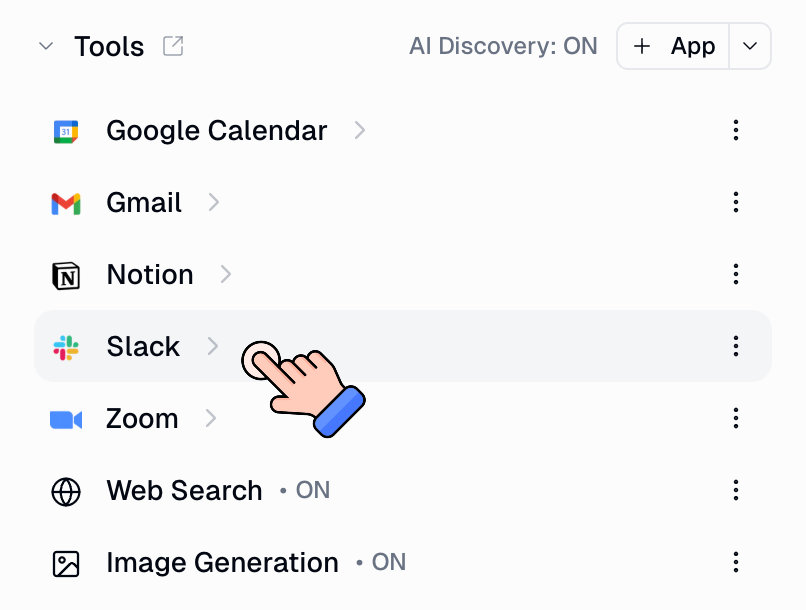
A panel opens showing all available Slack tools, each with a toggle switch.
Find
Send Messagein the list and toggle it off.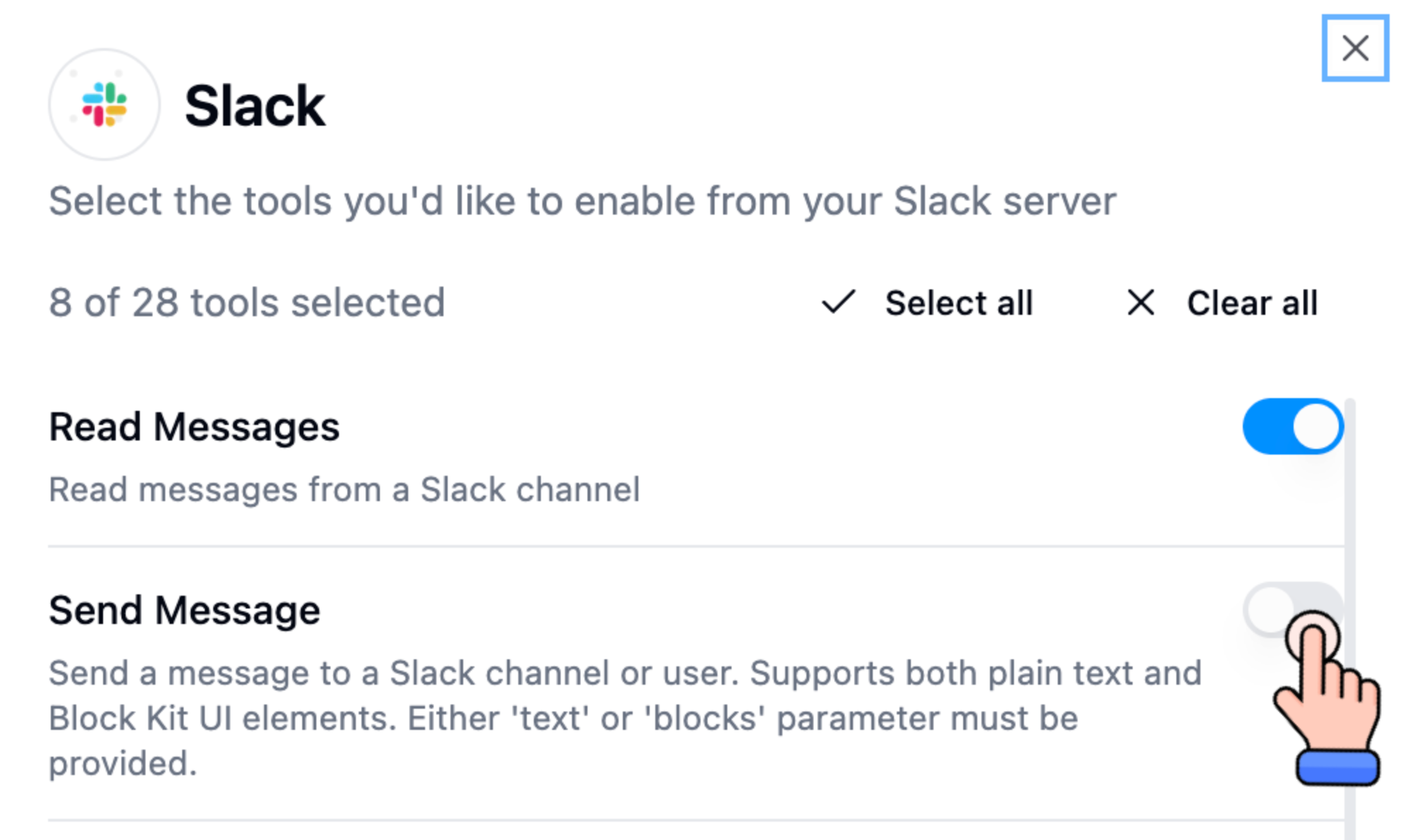
Save & Close the panel.
Test your agent by @mentioning it in Slack — you should now see only one response.
For a full walkthrough of restricting tools on any integration, see How to Restrict Which Tools an Integration Can Use in Your Agent.
Alternative: Remove the Slack integration entirely
If your agent doesn't need to read messages, search Slack, or manage channels — and only needs to respond in the thread where it was @mentioned — you can remove the Slack tool entirely from the agent's tools. The Slack deployment handles replies on its own.
Which Slack Tools Should I Keep?
Here's a quick guide for a Slack-deployed agent:
Tool | Keep it? | Why |
Send Message | ❌ Disable | Causes double messages. The deployment channel already handles replies. |
Send Ephemeral Message | ⚠ Depends | Useful if you want the agent to send private messages only visible to one user. Won't conflict with the deployment response. |
Read Messages | ✅ Keep | Lets the agent read channel history for context. |
Search | ✅ Keep | Lets the agent search across your workspace. |
Get Message Thread | ✅ Keep | Lets the agent read full threads for context. |
Create/Archive Channel | ⚠ Depends | Only if your agent manages channels. |
Add/Remove User | ⚠ Depends | Only if your agent manages channel membership. |
Validation
After disabling Send Message:
Go to the Slack channel where your agent is deployed.
@mention the agent with a test question.
You should see exactly one reply — from your agent's deployment identity (your Custom Slack App name, or the Gumloop bot).
If you still see two messages, double-check that you toggled off Send Message (not a different tool) and that the panel shows it as disabled.
Still Need Help?
If this didn't resolve your issue, reach out to support at support@gumloop.com.